
IPTV Smarters Pro slow or buffering: how to fix it
Published Last updated 3 min read
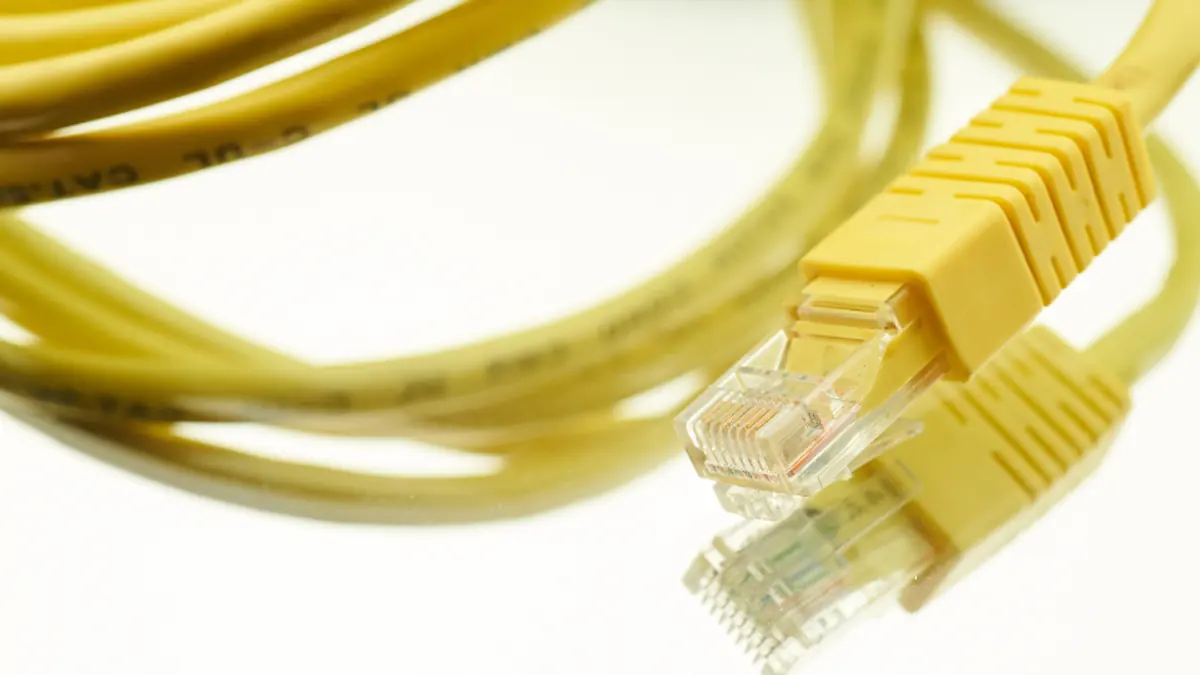
Buffering is frustrating partly because it can have so many causes. The picture stops, the wheel spins, and it is not obvious whether your TV, your router, your internet line or the source is responsible. Rather than trying random tweaks, work through the chain from one end to the other. If IPTV Smarters Pro is slow or keeps buffering, these checks apply exactly as they would with any other player app.
Understand what the buffer does
A player does not show video the instant it arrives. It keeps a few seconds in reserve so that small network wobbles go unnoticed. When data arrives more slowly than it is played, the reserve runs out and playback pauses to refill. So the question is always the same: what is preventing data from arriving steadily?
Steadiness matters as much as raw speed. A fast connection with sudden dropouts can perform worse than a slower, stable one.
Step 1: Find out where the problem is
Before changing anything, run three quick comparisons:
- Does it happen on all channels, or just one? A single faulty channel points to the source.
- Does it happen on another device on the same network? If not, look at the first device.
- Do other apps, such as a major video service, also stutter? If they do, your network is the likely culprit.
Step 2: Measure your connection on the device itself
Run a speed test from the streaming device if you can, and at the time the problem occurs. Evening peaks can differ greatly from a test at lunchtime. As a very rough guide, HD video needs several megabits per second and 4K considerably more, with the exact figure dependent on the stream.
Note the consistency too. Run the test a few times and watch for wide swings in the results.
Step 3: Improve the Wi-Fi
Wi-Fi is the most common weak link in a typical home, and the cheapest to fix:
- Connect with an Ethernet cable if your device has a port. This single change eliminates a whole category of problems.
- Use the 5 GHz band when the device is reasonably close to the router. It is faster and usually less crowded.
- Move the router into the open, away from cabinets, thick walls and large appliances.
- For stick-style players hidden behind a TV, use a short HDMI extension to move the stick away from the metal back panel.
- In a larger or thick-walled home, consider a mesh system or a wired access point rather than a basic repeater.
Step 4: Reduce competition on the network
Cloud backups, game downloads and video calls all compete with your stream. Pause them while you test. Many routers offer a quality-of-service setting that can prioritise your TV, although results vary by model.
Step 5: Tune the device and app
- Restart the device. Sticks in particular benefit from a full power cycle.
- Clear the app's cache and free some storage.
- Try the alternative video decoder in the app settings, switching between hardware and software modes.
- Increase the buffer size, where the app offers that option.
- Lower the stream quality to see whether the problem disappears.
Step 6: Consider the source
If every test at home looks good and the problem still appears across devices, the source itself may be overloaded, especially during major live events. No router setting can fix that. Contact the company that provides your service and describe what you have already ruled out.
Some providers also manage traffic at busy times. If you suspect a problem with your line, your internet provider is the right contact.
A simple order of attack
Check your scope, run a speed test, go wired if you can, reduce competing traffic, then tune the app. Changing one thing at a time tells you what truly helped. For other symptoms, see our troubleshooting page, or check the notes for your device.
Keep reading

Setup
How to set up a player app on Amazon Fire TV
A careful walkthrough for installing a media player app on Fire TV from the Appstore, entering playlist details and getting a smooth first run.
4 min read

Setup
How to add an EPG programme guide to your player app
Learn what EPG and XMLTV data are, how to add a guide source to your player app and what to do when listings are missing or wrong.
3 min read
Basics
How to check a streaming service before you trust it
A practical European checklist for judging whether a streaming service is legitimate, protecting your payment details and avoiding risky apps.
3 min read